> ## Documentation Index
> Fetch the complete documentation index at: https://gateway.consus.io/llms.txt
> Use this file to discover all available pages before exploring further.
# Claude Desktop
> Use Claude Desktop with the Consus Gateway via the built-in third-party inference mode.
Use of Claude Desktop with the Consus Gateway is appropriate when handling ITAR or other controlled data. However, the gateway does not control client-side behavior including local tool execution, file access, sandboxed shell traffic, or web fetches. Client-side behavior is the customer's responsibility — configure Cowork's managed-preferences keys (`coworkEgressAllowedHosts`, `allowedWorkspaceFolders`, `disabledBuiltinTools`) accordingly.
## Before you start
You need:
* **Claude Desktop installed.** Download the latest version from [claude.ai/download](https://claude.ai/download).
* **A Consus API key.** Get one from your Consus admin.
## Step 1: Open the Third-Party Inference panel
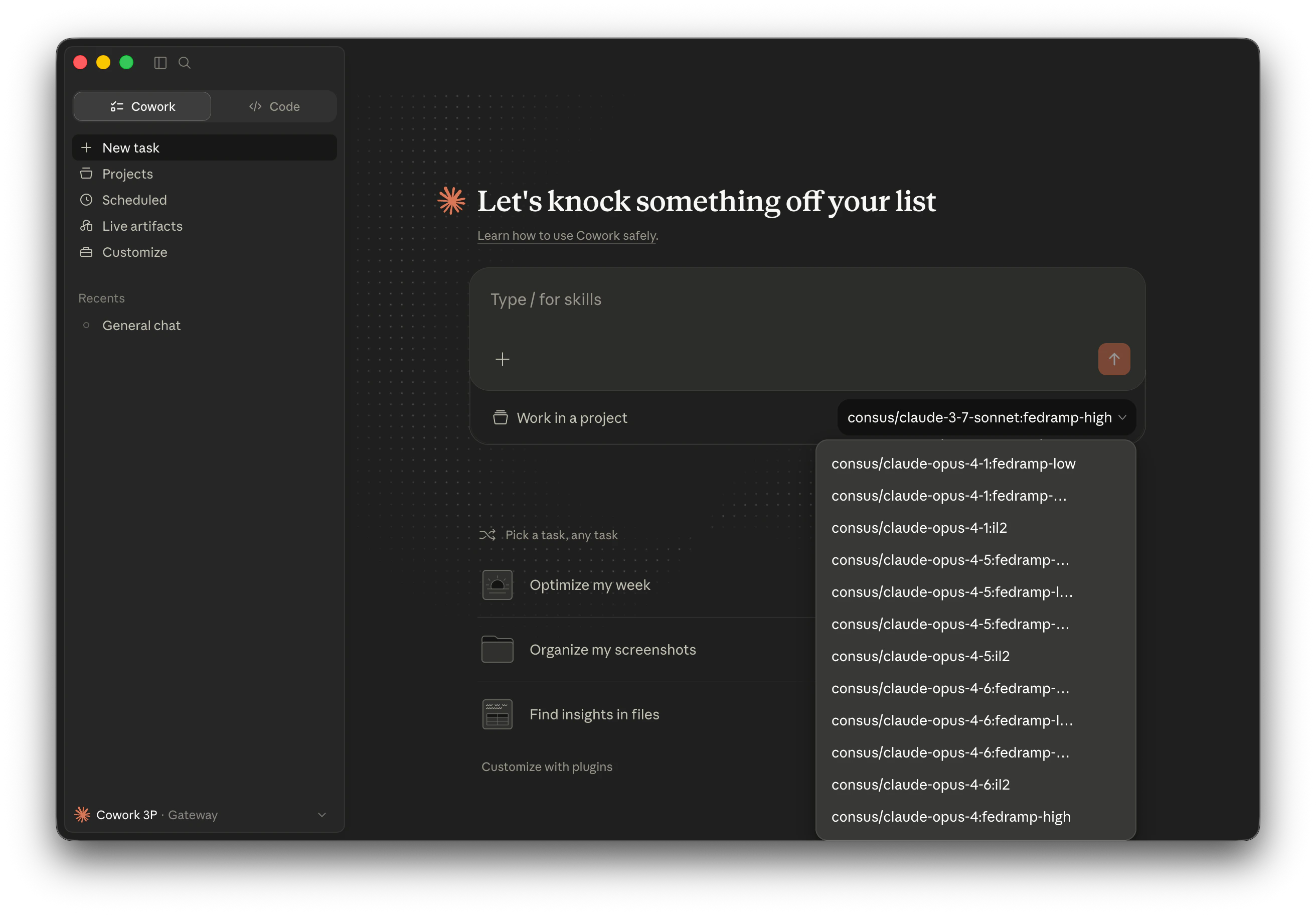
Launch Claude Desktop — you do not need to sign in to an Anthropic account. Click **Developer → Configure Third-Party Inference…** in the menu bar.
If the **Developer** menu isn't visible, open **Help → Troubleshooting** and click **Enable Developer Mode** first. The menu appears immediately.
## Step 2: Enter Gateway credentials
Set the backend to **Gateway (Anthropic-compatible)** and enter your Consus credentials:
| Field | Value |
| ----------------------- | ------------------------ |
| **Credential kind** | `Static API key` |
| **Gateway base URL** | `https://api.consus.io/` |
| **Gateway API key** | Your Consus API key |
| **Gateway auth scheme** | `x-api-key` |
Click **Apply locally** to save your settings.
The Consus Gateway uses the `x-api-key` header, not `bearer`. Make sure the auth scheme is set correctly or every request will return 401.
## Step 3: Restart and launch
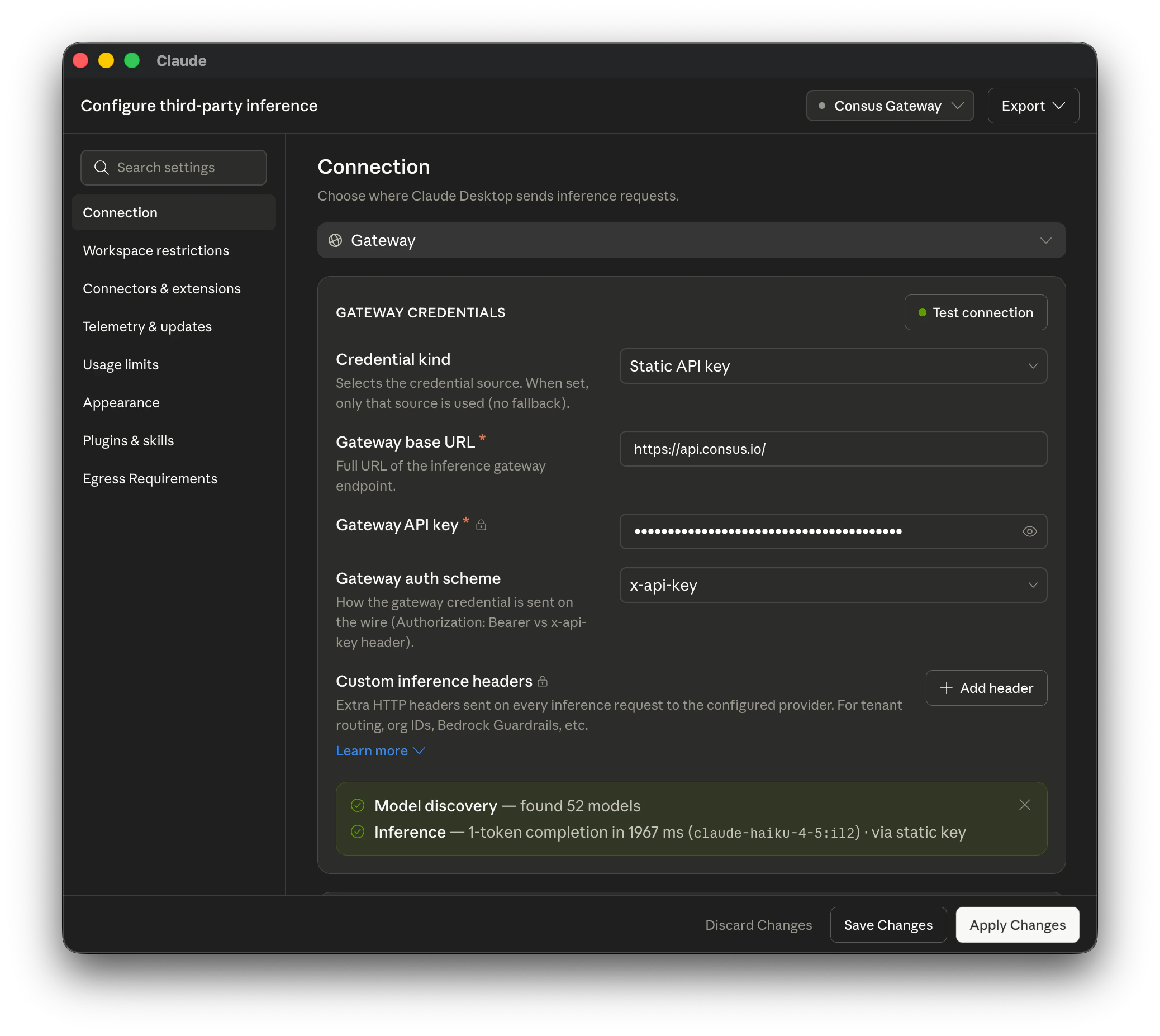
Fully quit Claude Desktop and reopen it. On the start screen, choose **Continue with Gateway** (shown as "Local configuration"). No Anthropic account is needed.
## Step 4: Select a model
The model picker is populated from `GET https://api.consus.io/v1/models`. Claude Desktop only routes to Claude models — GPT and Gemini entries returned by the gateway are filtered out by the app and will not appear in the picker. Every Claude entry is namespaced under `consus/` and carries an explicit compliance suffix — for example:
* `consus/claude-sonnet-4-5:il5+itar`
* `consus/claude-opus-4-8:fedramp-high`
* `consus/claude-haiku-4-5:il2`
Pick the variant that matches the compliance posture for your session. The model ID you select is what the gateway authorizes against — `:il5+itar` routes to an ITAR-authorized provider in AWS GovCloud Bedrock, `:fedramp-high` may also route to GCP Assured Workloads Vertex AI, and so on.
Need GPT-5.1 or Gemini in a desktop workflow? Use one of the other [integrations](/integrations/claude-code) — Claude Desktop is Anthropic-only by design.
## What gets served
Every request from Claude Desktop is routed to the provider whose compliance ceiling matches the model ID you picked. The response header `x-consus-served-model` confirms the model that served each successful request.
Streaming, native tool use, thinking blocks, and image input all pass through.
## Troubleshooting
* **Connection errors:** confirm the Gateway base URL is exactly `https://api.consus.io/`, your API key is valid, and the auth scheme is set to `x-api-key` (not `bearer`).
* **No models appearing:** verify the catalog is reachable from your machine with `curl -H "x-api-key: $CONSUS_API_KEY" https://api.consus.io/v1/models`. If that returns the catalog but the picker is empty, restart Claude Desktop fully (quit and reopen).
* **"Continue with Gateway" not showing:** make sure you clicked **Apply locally** in the configuration panel and fully quit Claude Desktop (not just closed the window) before reopening.
* **"Access to this website is blocked by your network egress settings" when using WebFetch:** Cowork sandboxes tool traffic by default. Open **Developer → Configure Third-Party Inference… → Sandbox & workspace** and add the required hosts to **Allowed egress hosts**. The Consus Gateway endpoint is implicitly allowlisted.
## Claude Code
If you prefer a terminal workflow, Claude Code also works with the Consus Gateway — see the [Claude Code integration guide](/integrations/claude-code).
 ## Step 2: Enter Gateway credentials
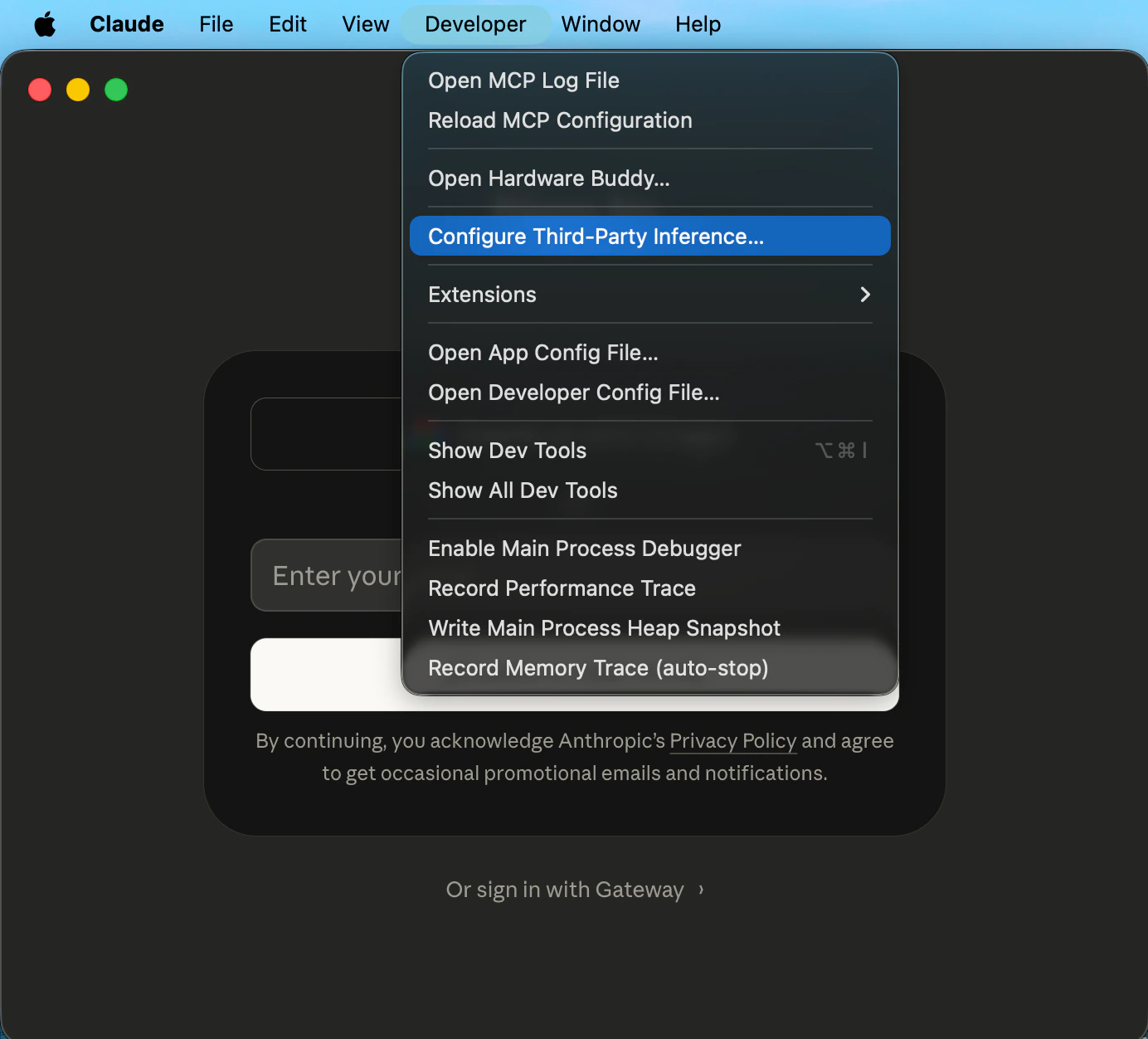
Set the backend to **Gateway (Anthropic-compatible)** and enter your Consus credentials:
| Field | Value |
| ----------------------- | ------------------------ |
| **Credential kind** | `Static API key` |
| **Gateway base URL** | `https://api.consus.io/` |
| **Gateway API key** | Your Consus API key |
| **Gateway auth scheme** | `x-api-key` |
## Step 2: Enter Gateway credentials
Set the backend to **Gateway (Anthropic-compatible)** and enter your Consus credentials:
| Field | Value |
| ----------------------- | ------------------------ |
| **Credential kind** | `Static API key` |
| **Gateway base URL** | `https://api.consus.io/` |
| **Gateway API key** | Your Consus API key |
| **Gateway auth scheme** | `x-api-key` |
 Click **Apply locally** to save your settings.
 ## Step 4: Select a model
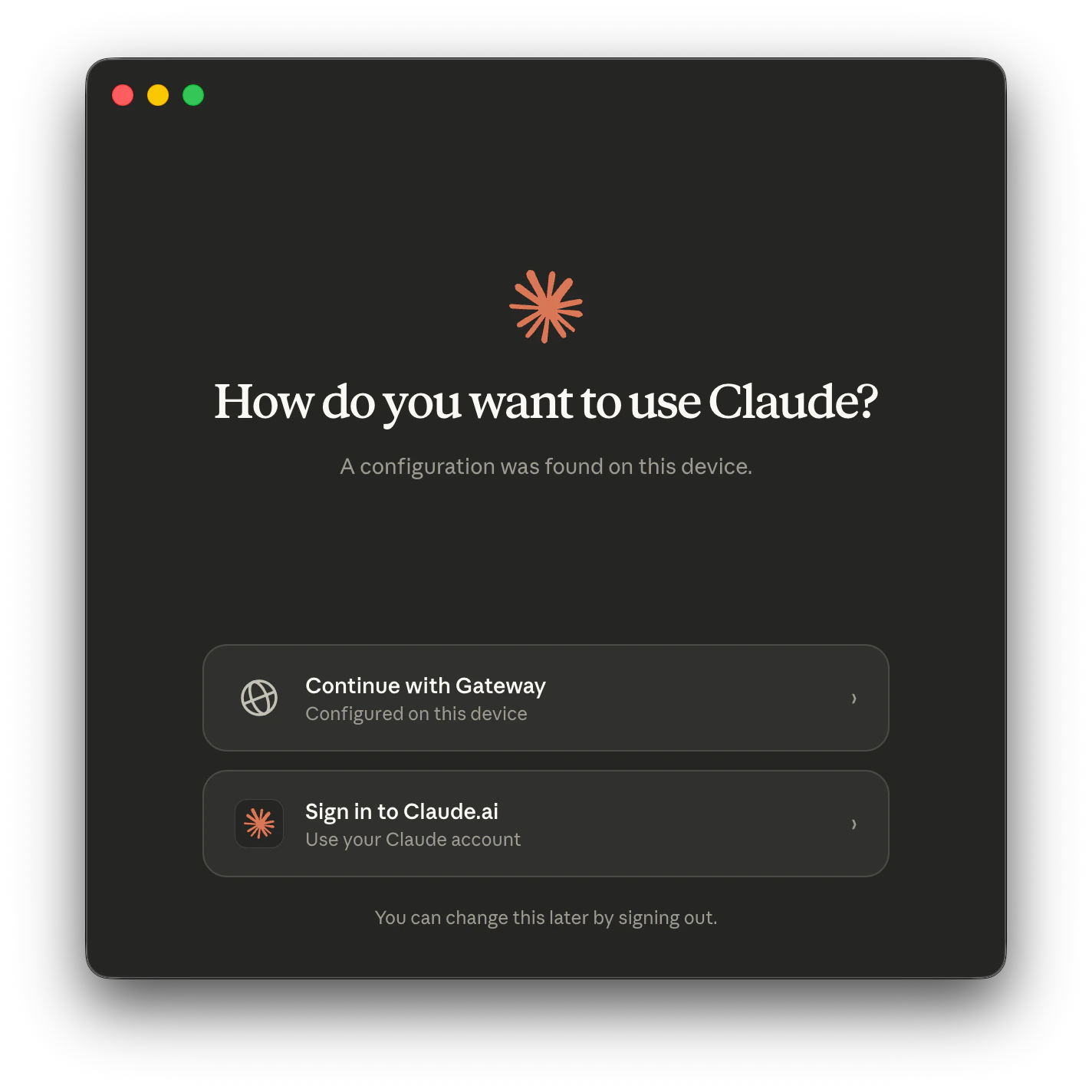
The model picker is populated from `GET https://api.consus.io/v1/models`. Claude Desktop only routes to Claude models — GPT and Gemini entries returned by the gateway are filtered out by the app and will not appear in the picker. Every Claude entry is namespaced under `consus/` and carries an explicit compliance suffix — for example:
* `consus/claude-sonnet-4-5:il5+itar`
* `consus/claude-opus-4-8:fedramp-high`
* `consus/claude-haiku-4-5:il2`
Pick the variant that matches the compliance posture for your session. The model ID you select is what the gateway authorizes against — `:il5+itar` routes to an ITAR-authorized provider in AWS GovCloud Bedrock, `:fedramp-high` may also route to GCP Assured Workloads Vertex AI, and so on.
## Step 4: Select a model
The model picker is populated from `GET https://api.consus.io/v1/models`. Claude Desktop only routes to Claude models — GPT and Gemini entries returned by the gateway are filtered out by the app and will not appear in the picker. Every Claude entry is namespaced under `consus/` and carries an explicit compliance suffix — for example:
* `consus/claude-sonnet-4-5:il5+itar`
* `consus/claude-opus-4-8:fedramp-high`
* `consus/claude-haiku-4-5:il2`
Pick the variant that matches the compliance posture for your session. The model ID you select is what the gateway authorizes against — `:il5+itar` routes to an ITAR-authorized provider in AWS GovCloud Bedrock, `:fedramp-high` may also route to GCP Assured Workloads Vertex AI, and so on.