

You need to be an admin of your organization in the Consus portal. For sign-in with your company account, your identity provider (Okta, Microsoft Entra ID, Google Workspace, or another SAML/OIDC provider) must be connected to the portal. Without it, each person pastes a key from the portal instead.
The short version
- Choose your settings on the portal’s Launcher page and save.
- Download one package per operating system from that page.
- Push it with your device management, together with the launcher installer.
- Each person signs in once.
Before you start
- A device management tool that can push a package, a script, and a profile: Jamf or Kandji on macOS, Intune or Group Policy on Windows.
- Standard user accounts. The locks hold because only an administrator can change the files. A person who is an administrator on their own computer can remove them.
- The AI tools themselves. The launcher sets tools up; it does not install them. Push Claude Desktop, Claude Code, and the others the way you push any app.
- Two hosts allowed on your network:
api.consus.iofor requests andportal.consus.iofor sign-in. The launcher itself contacts nothing else.
Step 1: Choose your settings
Open the portal and go to Launcher.
Open a tool’s row to see what its lock enforces and the few settings it lets you choose, such as which MCP servers may run.
Click Save to Consus. Signed-in launchers pick up the change the next time they start or come to the front. No push is needed for that part.
Step 2: Download the package
Still on the Launcher page, go to Push it. Choose your machines, then click Download all, at the right of each operating system’s heading.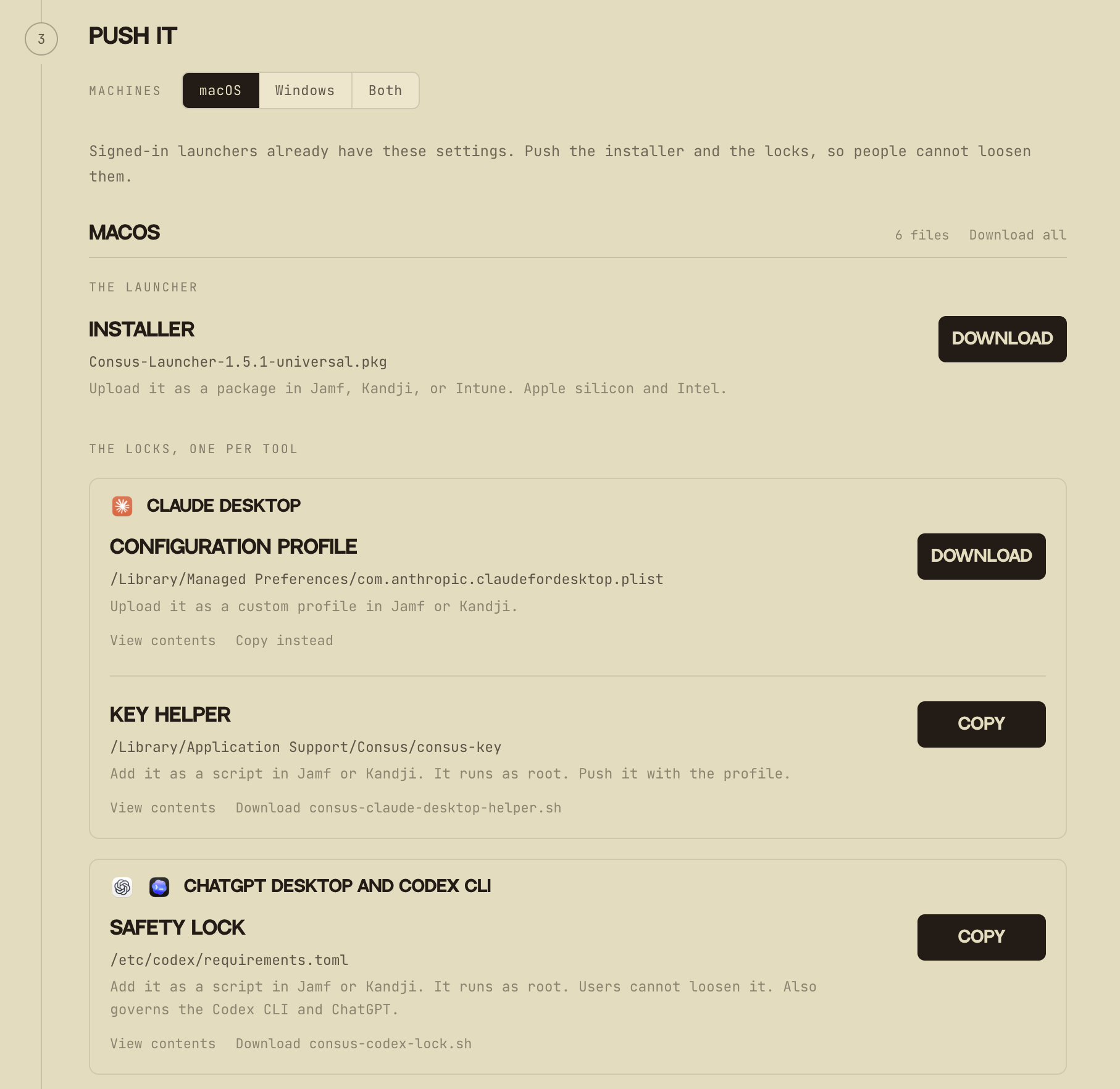
The Push it step. Download all is at the right of each operating system's heading.
- The lock files for the tools you turned on.
- A README that lists every file, where it lands, and how to push it.
Step 3: Push it
Push the installer and the lock files together.- macOS
- Windows
You only get the files for the tools you turned on.
Step 4: Each person signs in
- Open Consus Launcher.
- Click Sign in with Consus and approve in the browser, using the company account.
- Open a tool, from the launcher or the usual way.
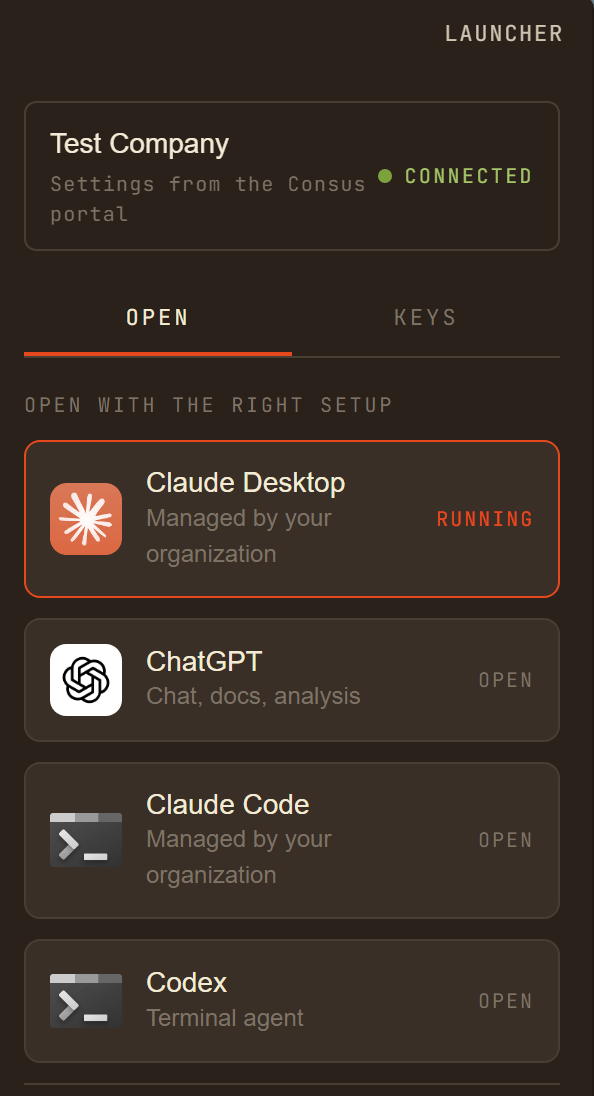
Locked tools show Managed by your organization.
- On macOS, a few permission prompts: keychain access (choose Always Allow), and Automation and Accessibility, which let the launcher open and place tool windows.
- Factory asks for its own sign-in once, with the person’s Factory account.
- Slack asks each person to click Connect once in Claude Desktop and Claude Code, if you turned it on.
- Sign-in lasts 30 days. After that, the launcher asks the person to sign in again.
Check one computer
Before the full rollout, confirm on one computer, signed in as a standard user:- The launcher shows your organization’s name and Connected.
- Each locked tool shows Managed by your organization.
- Each tool answers a message when opened outside the launcher, from Spotlight, the Start menu, or a terminal.
- Claude Desktop’s inference settings cannot be edited.
What the locks enforce
What your team should expect:
- Locked settings cannot be changed. They are enforced by the files you pushed, not by the launcher.
- The locks cover every account on the computer. A personal Claude sign-in will not work on a locked computer.
- Signed out means not running. A locked tool has no key until the person signs in to the launcher again.
Without device management
You can skip steps 2 and 3. Install the launcher, have each person sign in, and the launcher applies your saved settings itself. This is quicker to set up, but it is not enforced. A person can change a tool’s settings, and the launcher only puts them back the next time it opens that tool.Changing settings later
Troubleshooting
A tool says “No Consus key in the keychain.” The person is signed out. Open Consus Launcher and sign in, then try again. A tool says “403 Forbidden” right after signing in again. The tool was already open and is still using the old key. Quit it fully and reopen it. On Windows, closing the window does not quit the app: right-click its icon in the system tray and choose Quit. Claude Desktop says “Configuration can’t be used.” The profile landed without its key helper, or an older package is still on the computer. Push the current package again, including the helper script on macOS. The launcher shows “Set by your IT” next to a setting, and portal changes do not reach it. The computer has the optional pinned settings file. Remove it and the launcher follows the portal again.Removing the locks
- macOS
- Windows
- Remove the Claude Desktop profile.
- Delete
/Library/Application Support/Consus. - Delete
/Library/Application Support/ClaudeCode/managed-settings.json. - Delete
/Library/Application Support/Factory/settings.json. - Delete
/etc/codex/requirements.toml.